Atlassian Agent (Jira + Confluence)
Overview
A unified AI-powered agent for interacting with Jira issues, sprint progress, and Confluence pages through a single conversational interface.
What is the Atlassian Agent?
The Atlassian Agent is a unified AI-powered tool that brings together Jira and Confluence into a single conversational interface. Instead of switching between separate agents, you can now ask questions about Jira issues, track sprint progress, and search or summarize Confluence pages — all in one place. The agent understands your intent and translates natural language into precise actions across both Atlassian products.
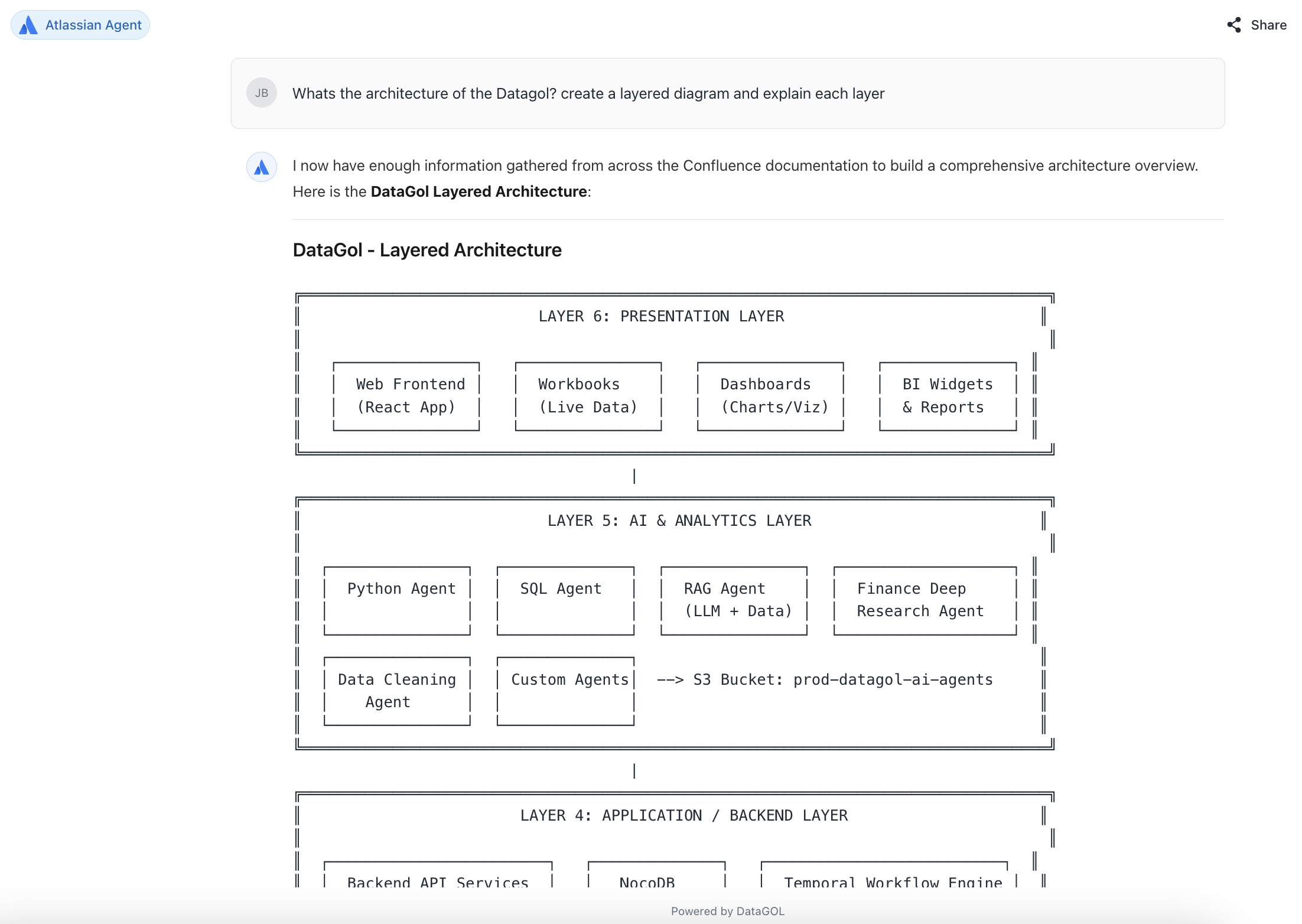
The Atlassian Agent combines Jira and Confluence capabilities to streamline project management and knowledge workflows through conversational AI.
-
Unified interface: No need to switch between a Jira agent and a Confluence agent. One conversation handles both products seamlessly.
-
Natural language understanding: Ask questions or give commands in plain English — the agent maps your intent to the right Atlassian action automatically.
-
Jira intelligence: Query issues, check sprint status, view assignees, filter by priority or label, and get progress summaries across projects.
-
Confluence knowledge retrieval: Search spaces, retrieve page content, and get summaries of documentation or meeting notes without leaving the chat.
-
Cross-product context: Ask questions that span both tools — for example, link a Jira issue to related Confluence documentation in a single query.
Configuring the Atlassian Agent
Setting up the Atlassian Agent requires authorizing your Atlassian account via OAuth 2.0 directly from within the agent interface.
-
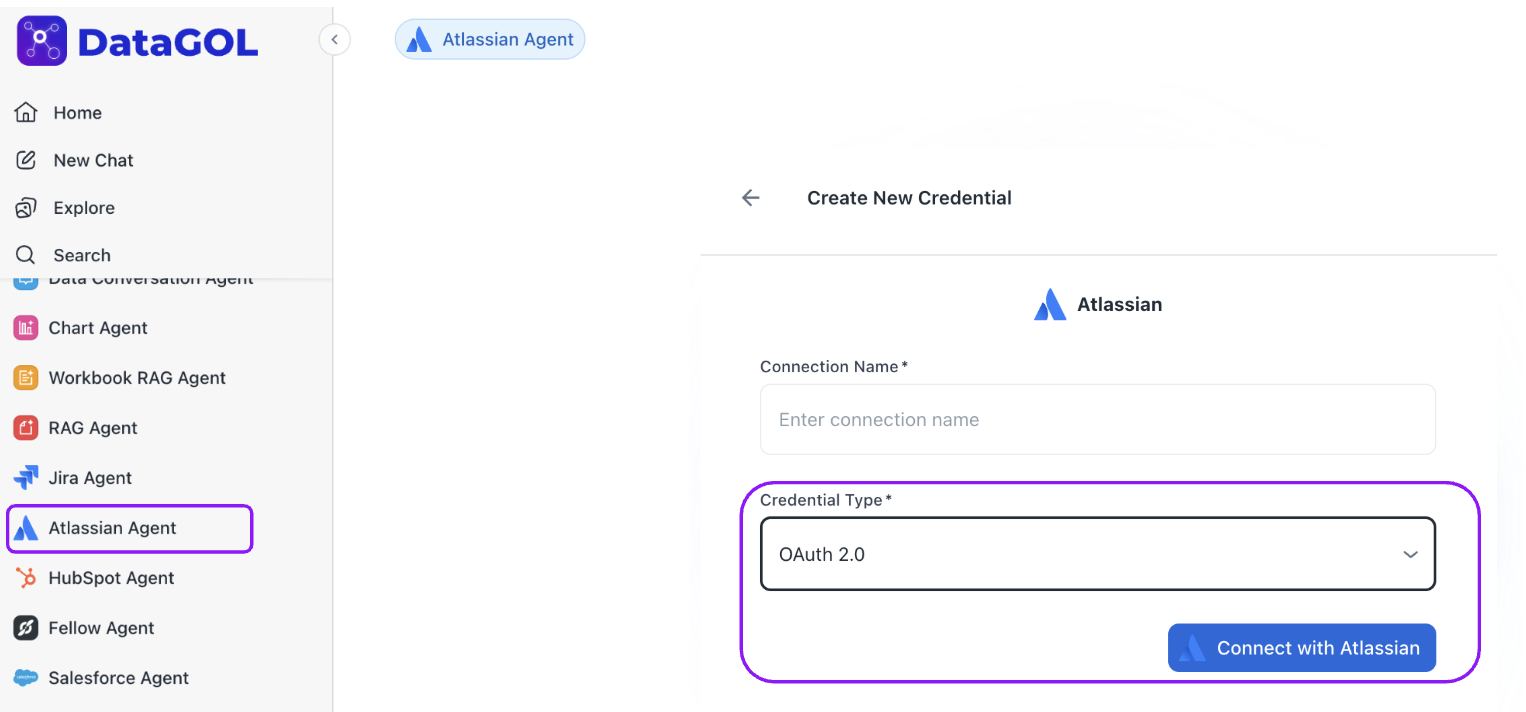
From the DataGOL Home page, navigate to Agents in the left sidebar.
-
Click on Atlassian Agent from the list of available agents.
-
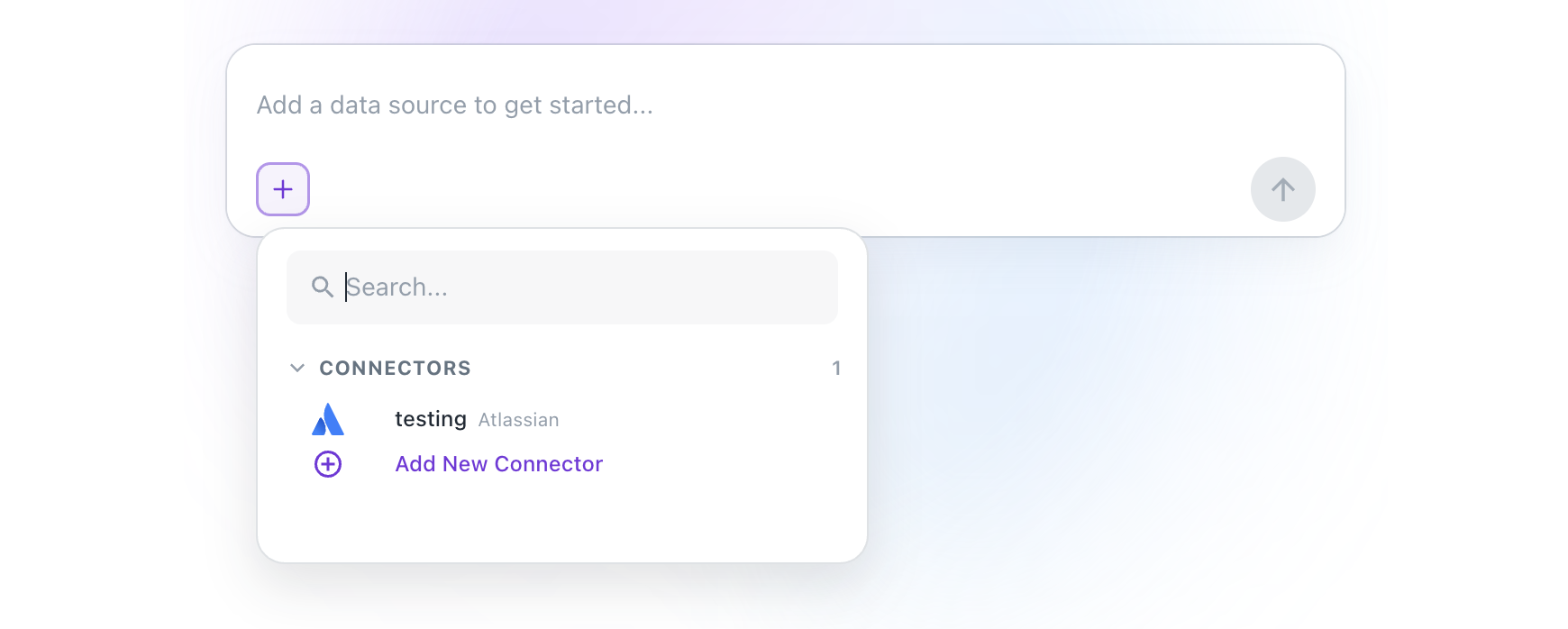
In the chat input area, click the + icon to add a data source.
-
In the connector dropdown, click Add New Connector.
-
Provide a Connection name — a descriptive label to identify this connector (e.g., "My Atlassian Workspace").
-
Click Connect with Atlassian. You will be redirected to the Atlassian login page.
-
Sign in with your Atlassian account credentials once prompted.
-
Review the permissions requested by DataGOL and click Accept to grant access. You will be redirected back to DataGOL automatically.
-
Once connected, your new Atlassian connector will appear in the connector list. Select it to start chatting.
DataGOL uses OAuth 2.0 to connect to Atlassian. No passwords or API tokens are stored — access is authorized securely through Atlassian.
Using the Atlassian Agent
Once the Atlassian connector is configured, you can start interacting with the agent immediately.
-
From the DataGOL Home page, navigate to the Agents section.
-
Click on the Atlassian Agent from the list of available agents.
-
Select the Atlassian connector you configured.
-
In the chat or prompt area, type your questions or commands in natural language.
-
Example prompts:
-
"List all high-priority issues unassigned in the BACKEND project."
-
"How many story points are remaining in the current sprint?"
-
"Find Confluence pages about the data pipeline architecture."
-
"What did we decide in the last architecture review meeting?"
-
"Show me all Jira issues linked to the API redesign epic."
-
-
-
The agent will respond with the relevant data from Jira, Confluence, or both — depending on your query. For actions that modify data, a preview will be shown for your review and confirmation before any changes are committed.
By following these steps, you can manage project tasks and access team knowledge through a single, unified conversational interface — without switching between tools.
Other Use Cases
The Atlassian Agent supports a wide range of queries and actions across both Jira and Confluence.
-
Jira — Retrieve issue and sprint information:
-
Query issues by criteria: Ask for issues filtered by status, assignee, priority, label, or project.
- Example prompt: "Show me all open bugs assigned to Sarah in the mobile app project."
-
Check sprint progress: Get a summary of the current sprint, including completed, in-progress, and blocked items.
- Example prompt: "What's the status of the current sprint in the PLATFORM project?"
-
Look up a specific issue: Retrieve details about a ticket by its key or description.
- Example prompt: "What's the latest update on PROJ-412?"
-
-
Confluence — Search and retrieve documentation:
-
Search pages by keyword or topic: Find relevant pages across spaces without knowing the exact title.
- Example prompt: "Find the onboarding documentation for new engineers."
-
Summarize page content: Get a concise summary of a long Confluence page.
- Example prompt: "Summarize the Q2 product roadmap page in the Engineering space."
-
Retrieve meeting notes: Look up recent meeting notes by team or date.
- Example prompt: "Get the notes from last week's platform team sync."
-
-
Cross-product queries: Combine Jira and Confluence context in a single question.
- Example prompt: "Is there any Confluence documentation related to the PROJ-301 authentication issue?"
Was this helpful?